
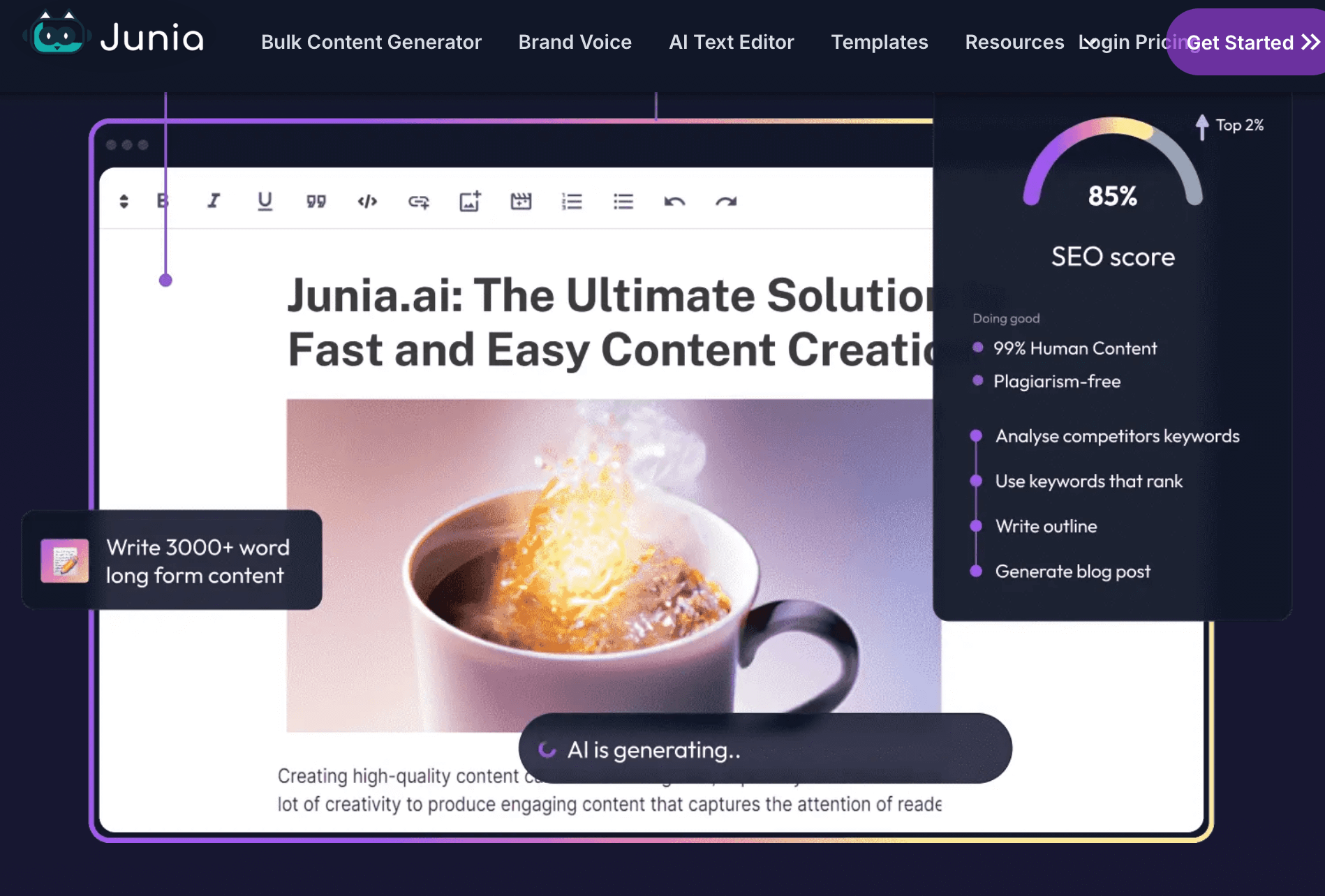
I’ve explored countless tools, but Junia AI stands out as a revolutionary tool for bloggers, marketers, and businesses. It’s not just another content creation tool – it’s your ticket to streamlining workflows, enhancing creativity, and producing high-quality, engaging content at scale.
In this how to use Junia AI guide, I’m going to show you how to unlock the full potential of this tool, step by step. Whether you’re struggling to keep up with content demands, tired of spending hours optimizing for SEO, or simply curious about how AI can transform your writing process, this guide is for you.
We’ll dive into:
- How to use Junia AI’s Bulk Content Generator to scale your output effortlessly
- Creating polished articles in minutes with the AI Blog Writer
- Enhancing your brand’s tone and style with Brand Voice Customization
- Leveraging SEO tools to rank higher and drive traffic
- Generating custom visuals with the AI Image Generator
This isn’t just theory – it’s a practical walkthrough packed with tips, examples, and actionable steps to help you streamline and elevate your content creation process.
Also, if you’re exploring AI tools for productivity, check out our beginner’s guide to AI writing tools or discover how to use AI to generate social media posts. For insights into enhancing your creativity, see our tips on AI writing prompts for instant inspiration.
Ready to discover what Junia AI can do for your content strategy? Let’s get started.
1. How to Use Junia AI: A Step-by-Step Guide
Step 1: Create Your Account
1. Visit the Junia AI website.
2. Click the ‘Get Started‘ or ‘Sign Up‘ button.
- Sign up using Google or create a separate account.
- Start with the free account, which includes 5,000 words to explore the platform.
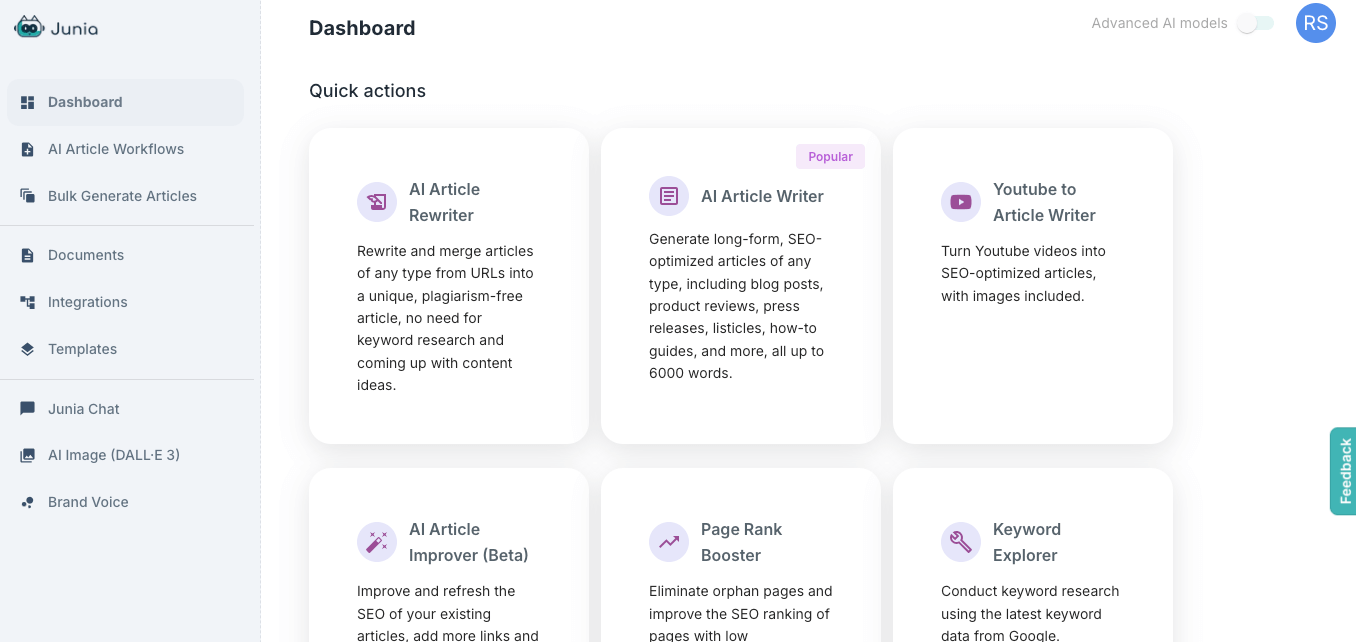
Once you log in, you’ll land on the Junia AI dashboard, a user-friendly hub for all the tool’s features. The left-hand sidebar showcases a variety of options, including:
- AI Article Rewriter
- AI Article Writer
- Blog Post Generator
- Keyword Explorer
- AI Image Generator
- Page Rank Booster
- Bulk Article Generator
Each tool is designed to optimize your content creation process. Below is a quick overview of some key dashboard features:
Highlighted Dashboard Features
- AI Article Workflows:
- Guides you through creating blog posts with integrated SEO steps, such as keyword research and competitor analysis.
- Helps structure content for better search rankings with options for internal and external linking.
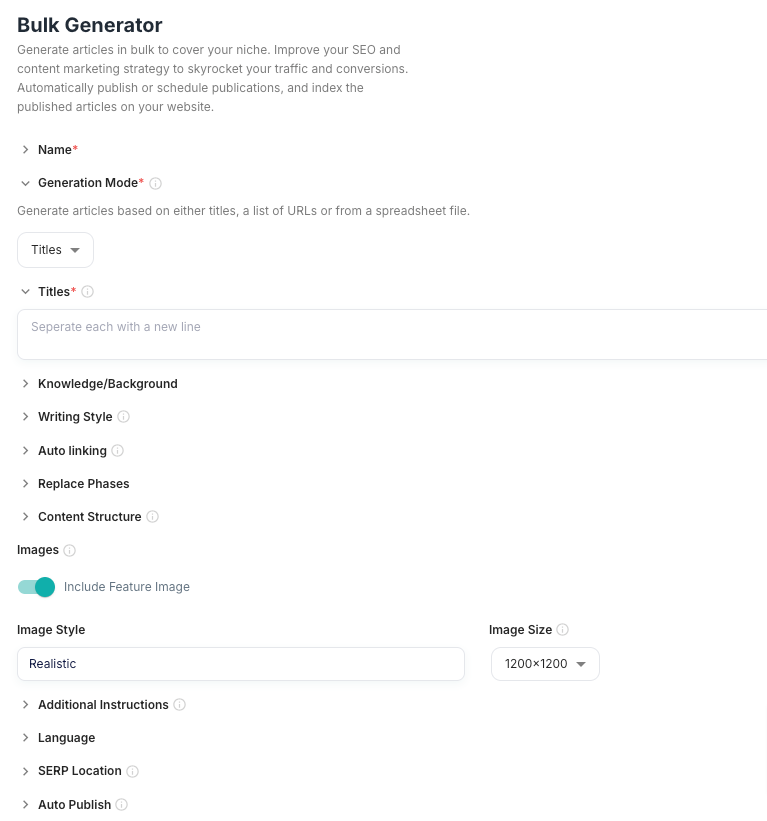
- Bulk Generate Articles:
- Enables efficient content creation at scale with settings for writing style, content structure, auto-linking, and more.
- Pro users can access the Auto Publish feature for seamless scheduling.
- Documents: This section likely stores all your generated content, allowing you to manage and edit your articles before publishing.
- Integrations: Junia AI integrates with various platforms, enabling seamless publishing to WordPress, Shopify, Medium, and more. This integration helps automate your content strategy by directly publishing generated content to your chosen platforms.
- Templates: These are pre-designed structures for different types of content, helping you quickly generate articles, reviews, and more by filling in specific fields.
- Junia Chat: This feature might offer AI-driven chat capabilities, possibly for customer support or interactive content creation.
- AI Image (DALL-E 3): This tool uses DALL-E 3 to generate images based on your descriptions, enhancing your content with custom visuals.
- Brand Voice: This feature ensures that the content generated aligns with your brand’s tone and style, maintaining consistency across all your communications.
- Guides, Billing, and Settings: These sections provide user support, account management, and customization options for your Junia AI experience.
2. Key Features
1. AI Article ReWriter
If you already have content that needs improvement, you will want to know how to use Junia AI’s Article Rewriter to enhance readability, tone, and SEO optimization. Simply paste your text, and the tool will provide suggestions to make your content more engaging.
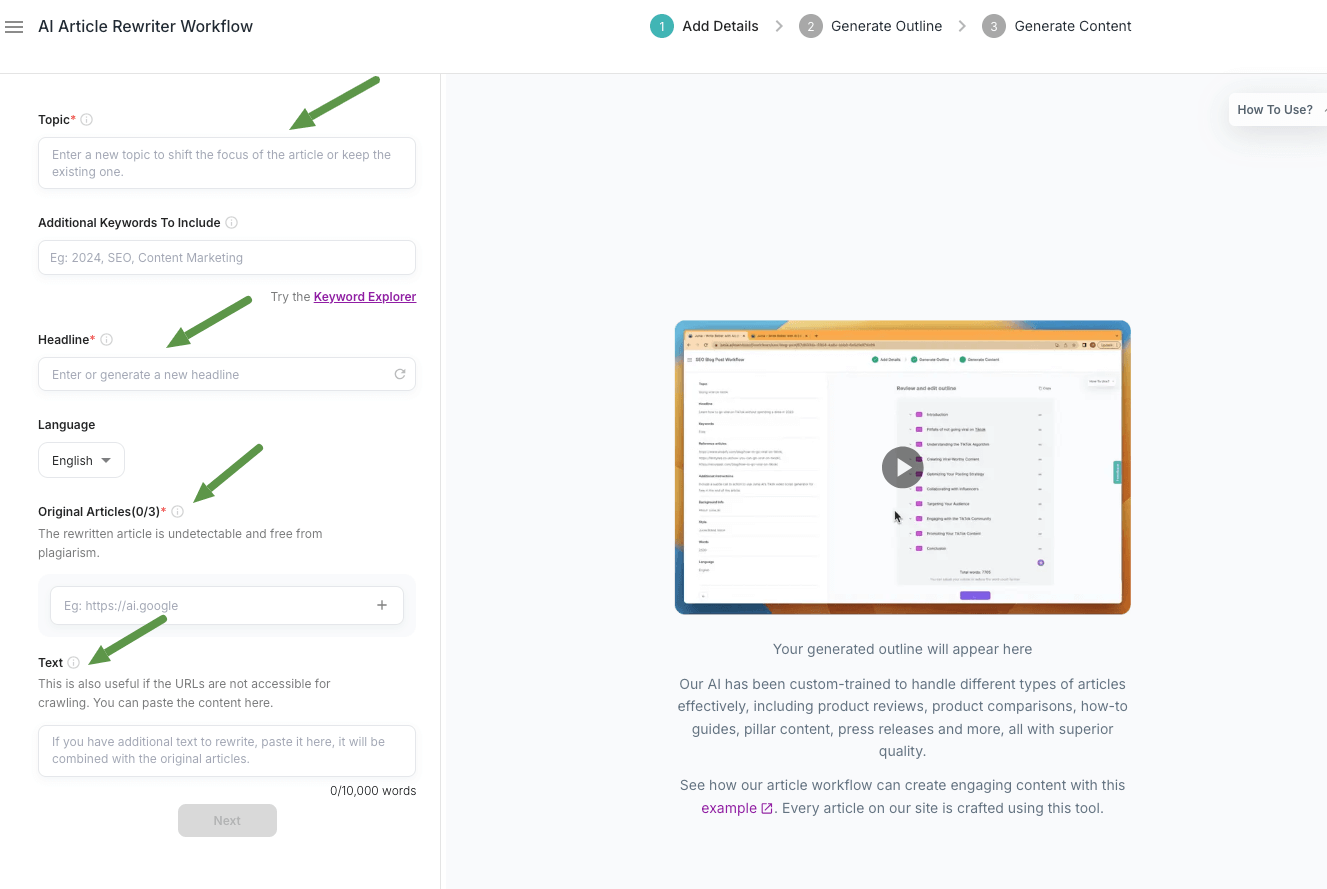
How to Use:
- Select the “AI Article Rewriter” from the dashboard.
- Paste your article into the editor and follow the prompts to refine it.
2. AI Blog/Article Writer
The Blog Writer helps you create high-quality articles in minutes, tailored to your chosen topic and SEO needs.
How to Use It:
1. Click on ‘AI Article Writer‘ from the dashboard.
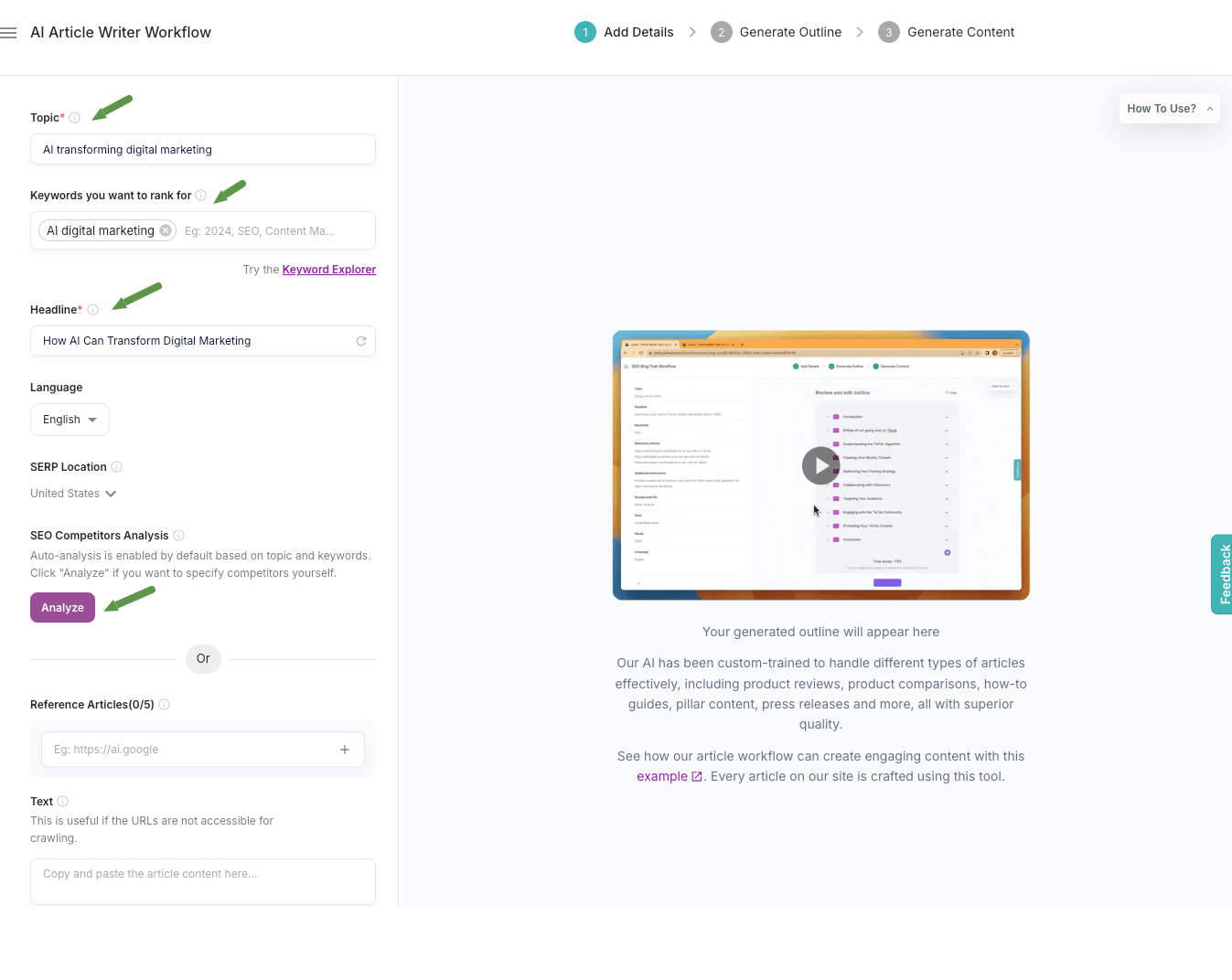
2. Enter a Topic’ or keyword. Example: “How AI Can Transform Digital Marketing.”
3. This is optional but if you want enter ‘Keywords you want to rank for‘
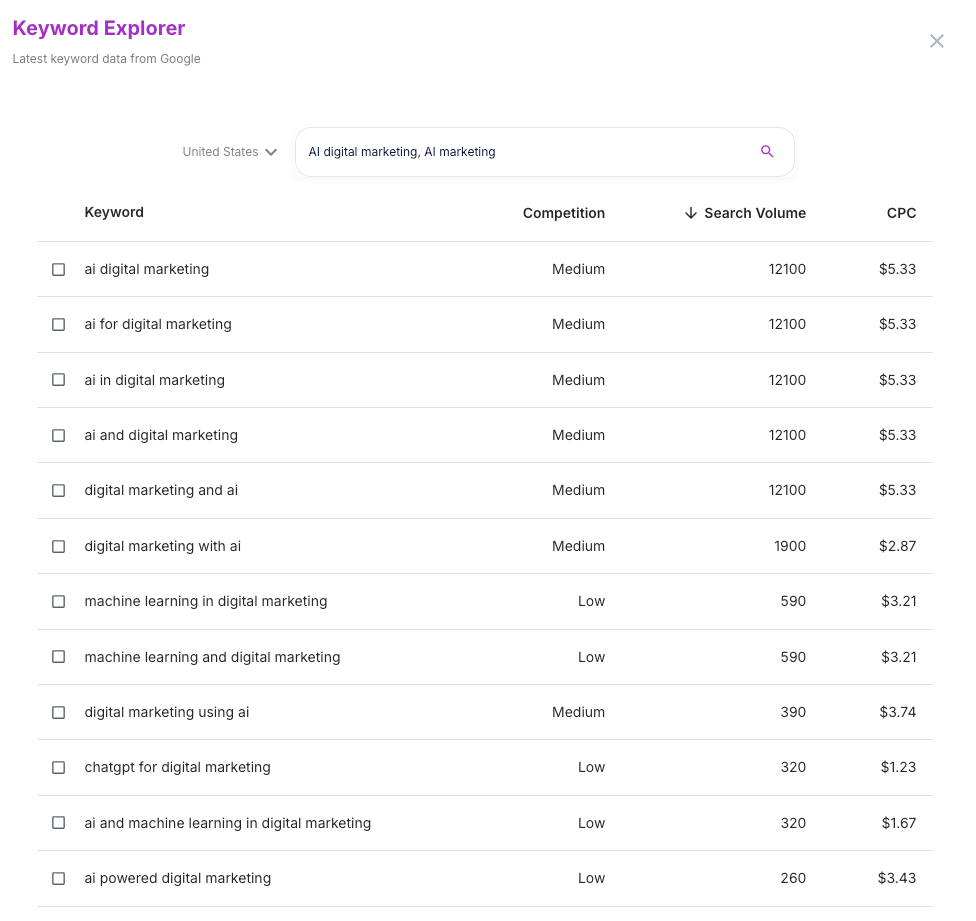
4. Use the ‘Try the Keyword Explorer‘ to identify SEO-friendly keywords.
See below:
5. Enter other fields:
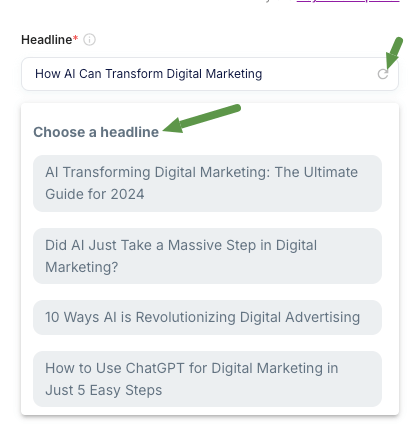
- ‘Headline‘: You can enter the headline or choose from the list shown to you.
- Select the ‘SERP Location‘: This option allows you to choose the target countries for your content. It ensures that keyword and SEO suggestions are tailored to the audience in the selected geographic regions.
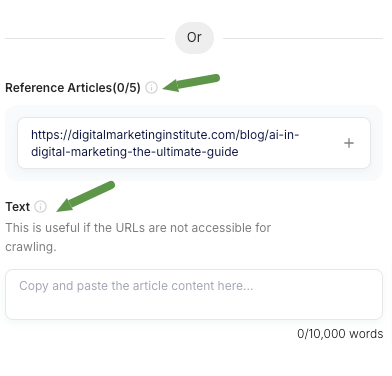
- Enter ‘Reference Articles‘: Use this option to add links to existing articles on the web that you want your content to reference or draw inspiration from. or add ‘Text‘ that you want referenced.
- You can do ‘SEO Competitor Analysis‘ and click on analyze which allows you to write your articles based on your competitors keywords on google to rank higher.
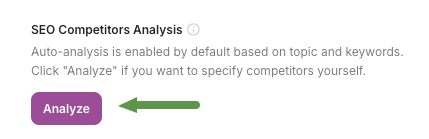
- Once you do that you will get the option below to choose your content guidelines of how you want to write the articles based on your selected competitors:

6. ‘Generate Outline Page‘: Then you will get an additional page where you can add additional information e.g. background/context, writing style, auto linking, word count, content quality (depending if you have paid or free subscription)
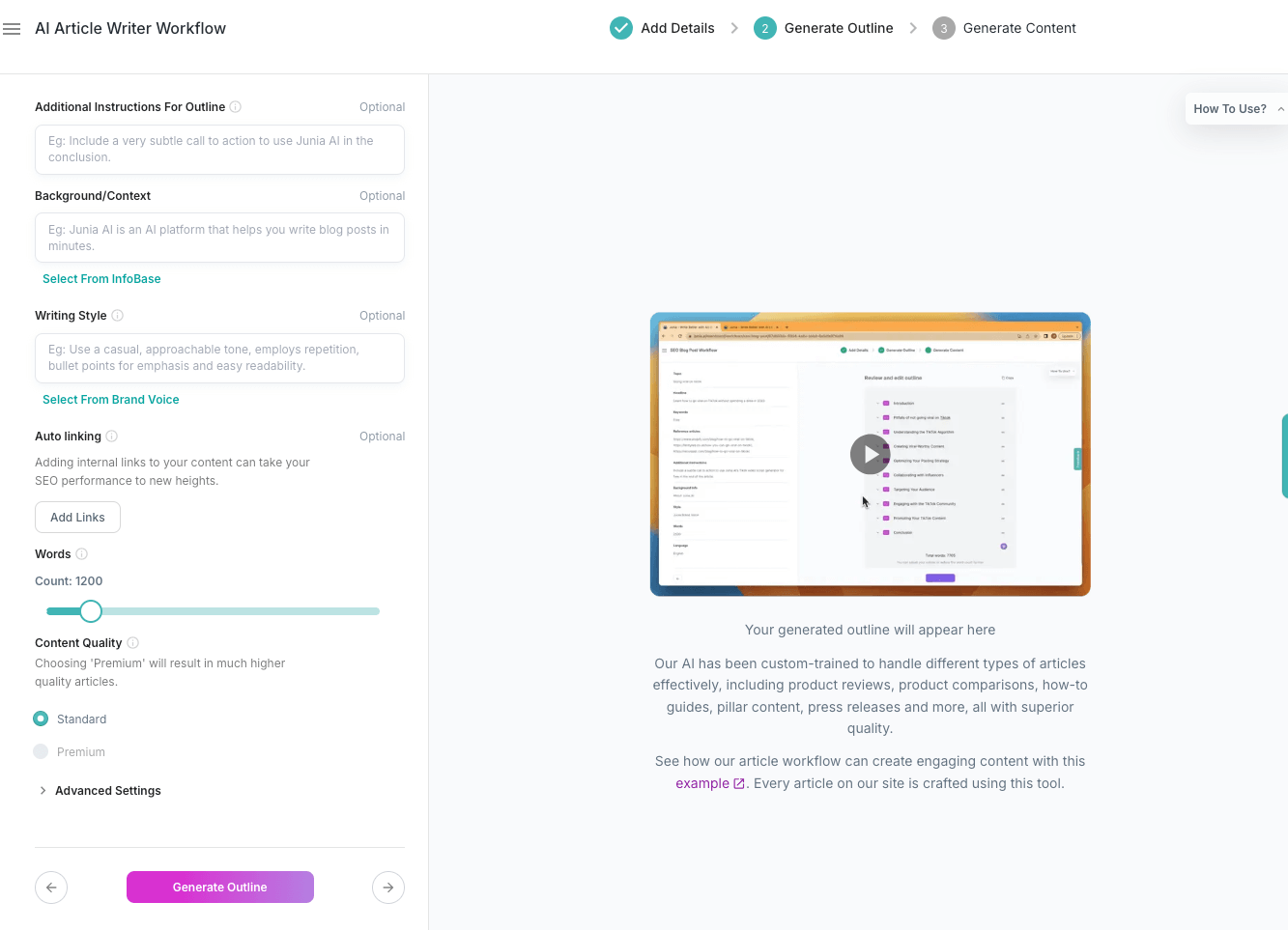
After you click on ‘Generate Outline‘. You will get a page like this where you can drag and reorder outline and you can open each heading to specify word limit and other functionalities.
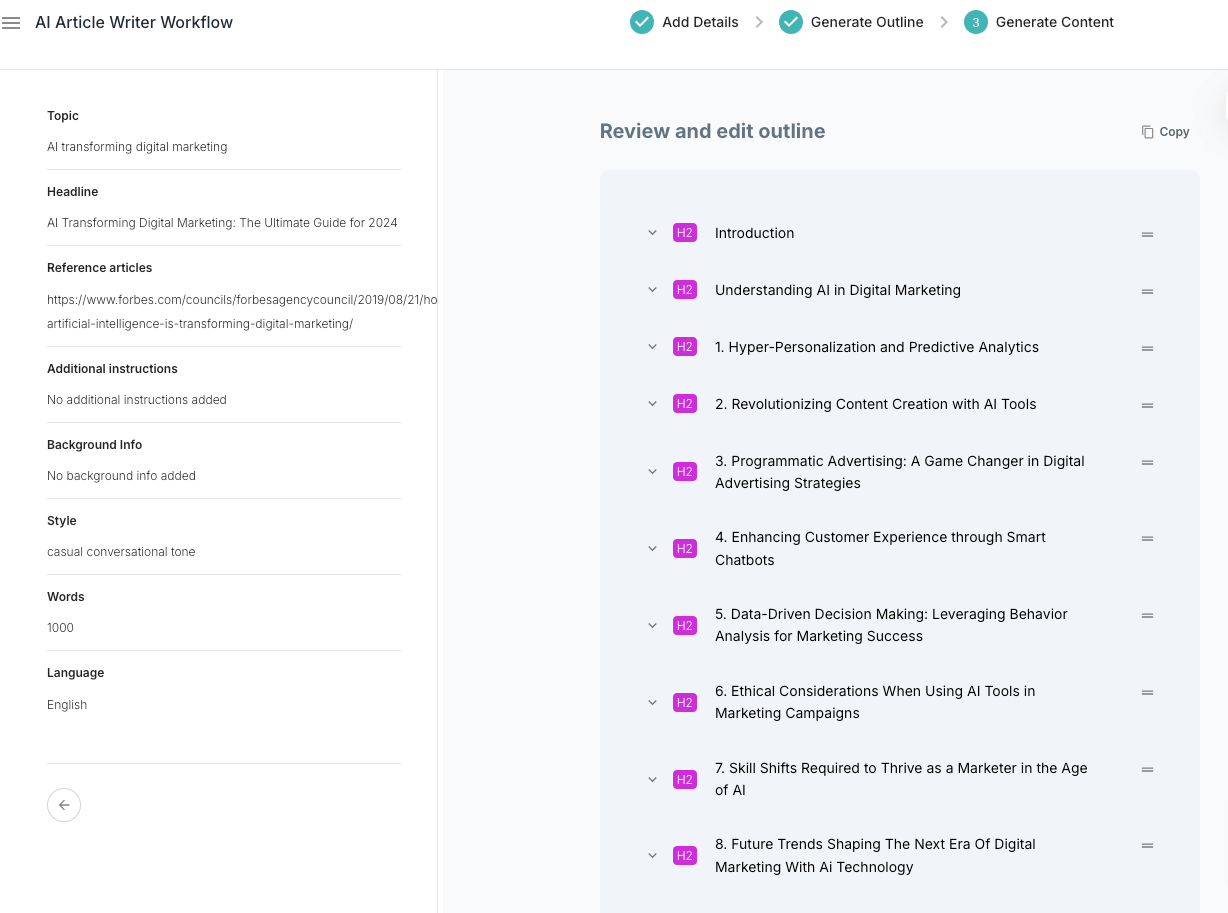
Then you click on ‘Generate‘ and it starts generating:
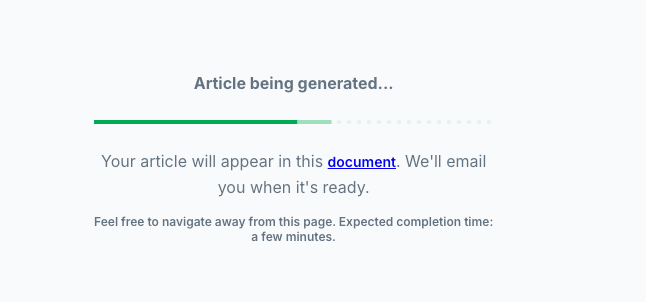
The tool, Junia AI, generates a fully structured article, including an introduction, subheadings, and a conclusion. Here’s how to use Junia AI: simply provide a topic or prompt, and the tool creates a detailed draft almost instantly. After generating the content, I moved and edited certain sections from the outline to fit my original ideas. The screenshot below shows that my SEO score could be improved.
In hindsight, it might have been better to let the tool generate the full content first and then edit it to understand how to optimize for a better score. Additionally, the tool also generated an image to complement the article, as shown in the screenshot below.
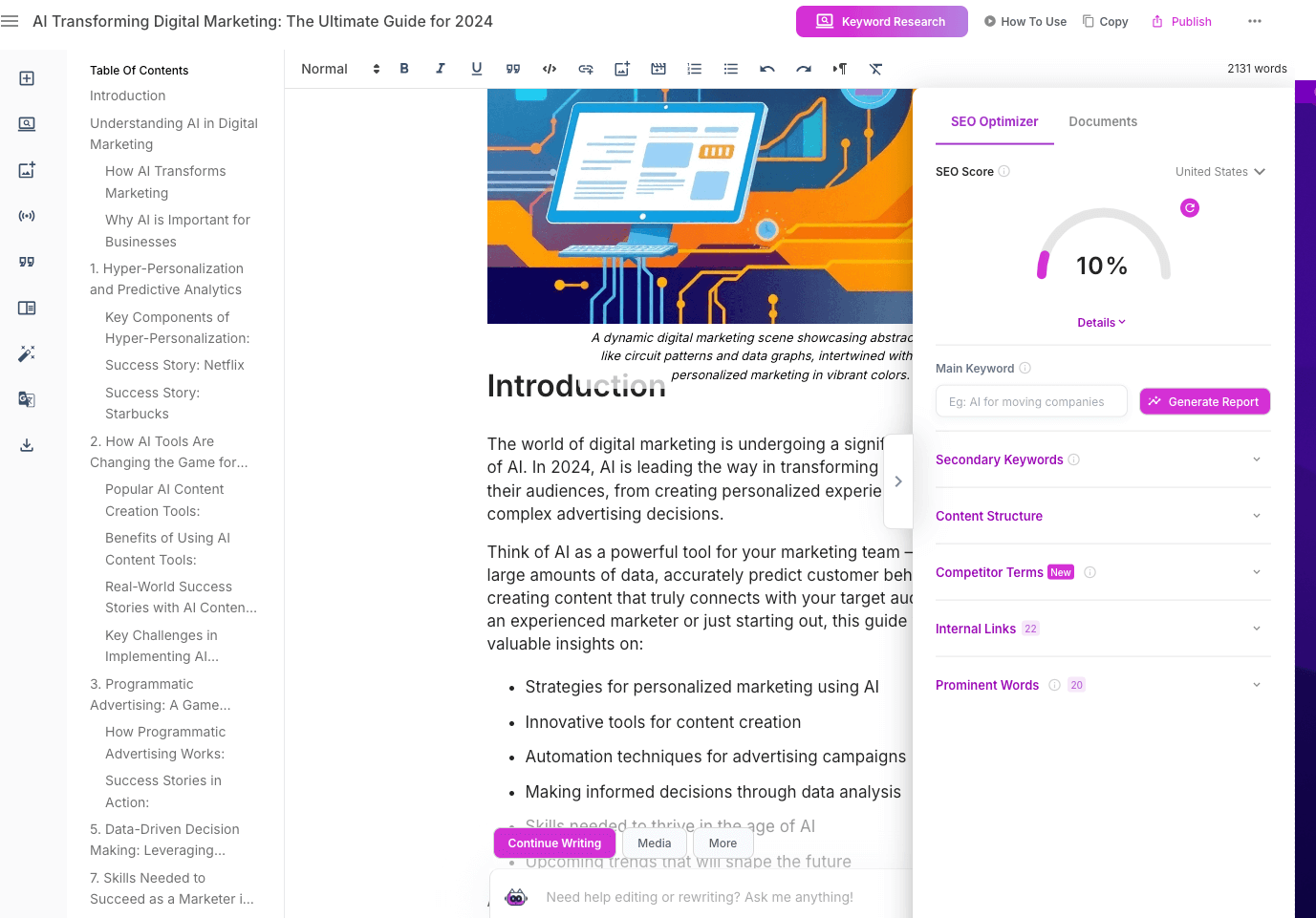
Also notice the editing tool panel or feature sidebar on the left hand-side that allow you to improve your seo, add images, allows you to an AI content detector to see if your article comes out as AI written, add citations, choose new template, improve article, bulk translate article in multiple languages, and and import your document into WordPress, HTML, or Markdown.
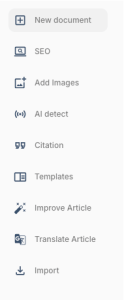
Note: Import means you can convert and transfer your document to a WordPress site for easy publishing, turn it into HTML code for web pages, or format it in Markdown for sharing on platforms that support that format.
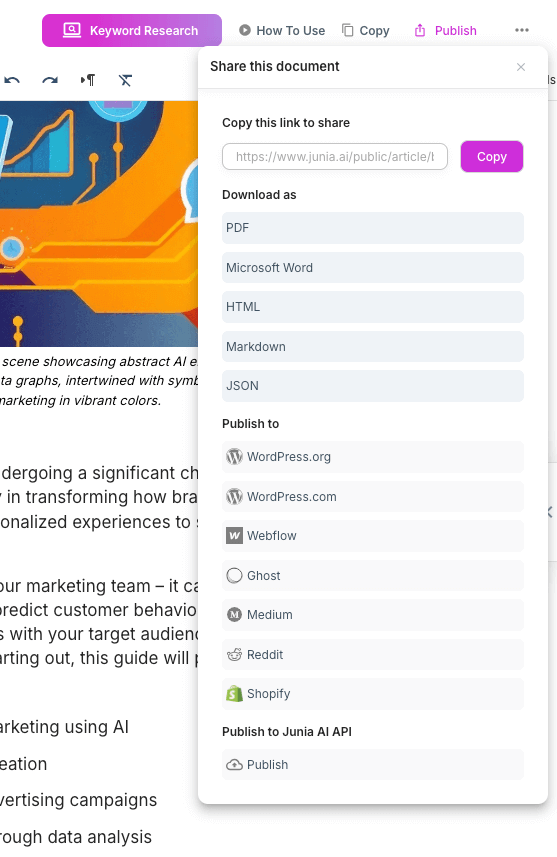
The Junia AI ‘Share‘ under ‘Publish‘ on the upper right feature is highly impressive, enabling functionalities like AI-generated images for your content, auto-blogging with AI-powered bulk article generation, automatic publishing to unlimited WordPress sites, scheduling posts by the number of daily publications, bulk publishing to multiple platforms, one-click internal and external linking for SEO boosts, automatic search engine indexing, AI-powered article improvements, and seamless SEO optimization—all without the need for manual copy-pasting. Additionally, it supports sharing to platforms like Shopify, Medium, Reddit, Ghost, Webflow, and more. See the screenshot below for details.
3. YouTube to Article Workflow
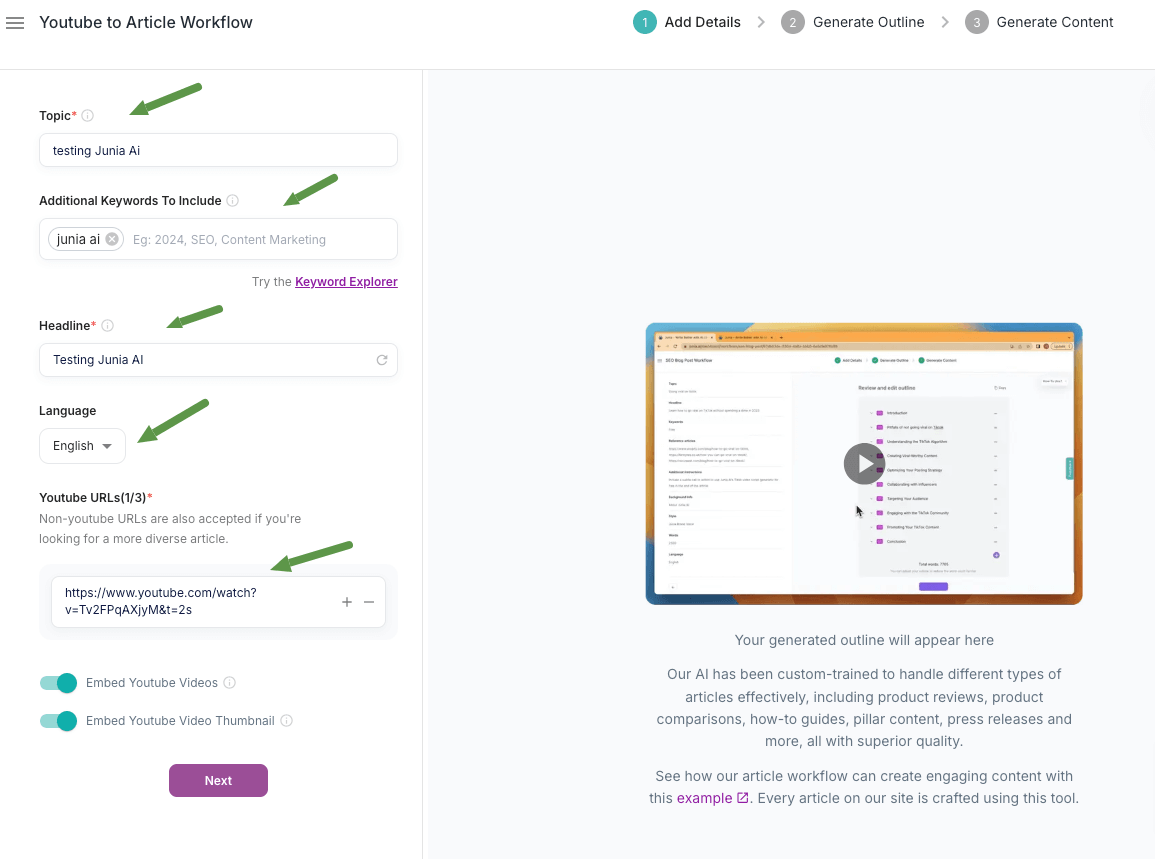
Junia AI’s ‘YouTube to Article Workflow‘ makes it easy to turn YouTube videos into articles quickly. This feature saves time by automatically converting video content into text, helping you reach more people, especially those who prefer reading. It also boosts your SEO, making your content easier to find online. With added tools for improving and optimizing articles, this feature is perfect for anyone looking to expand their content reach effortlessly. All you have to do is enter the information shown in screenshot below with your youtube video that you want to turn into script and and let Junia AI do the rest. For the below I just entered any youtube video to show you how it works.
How to use:
1. ‘Add Details‘ to generate script
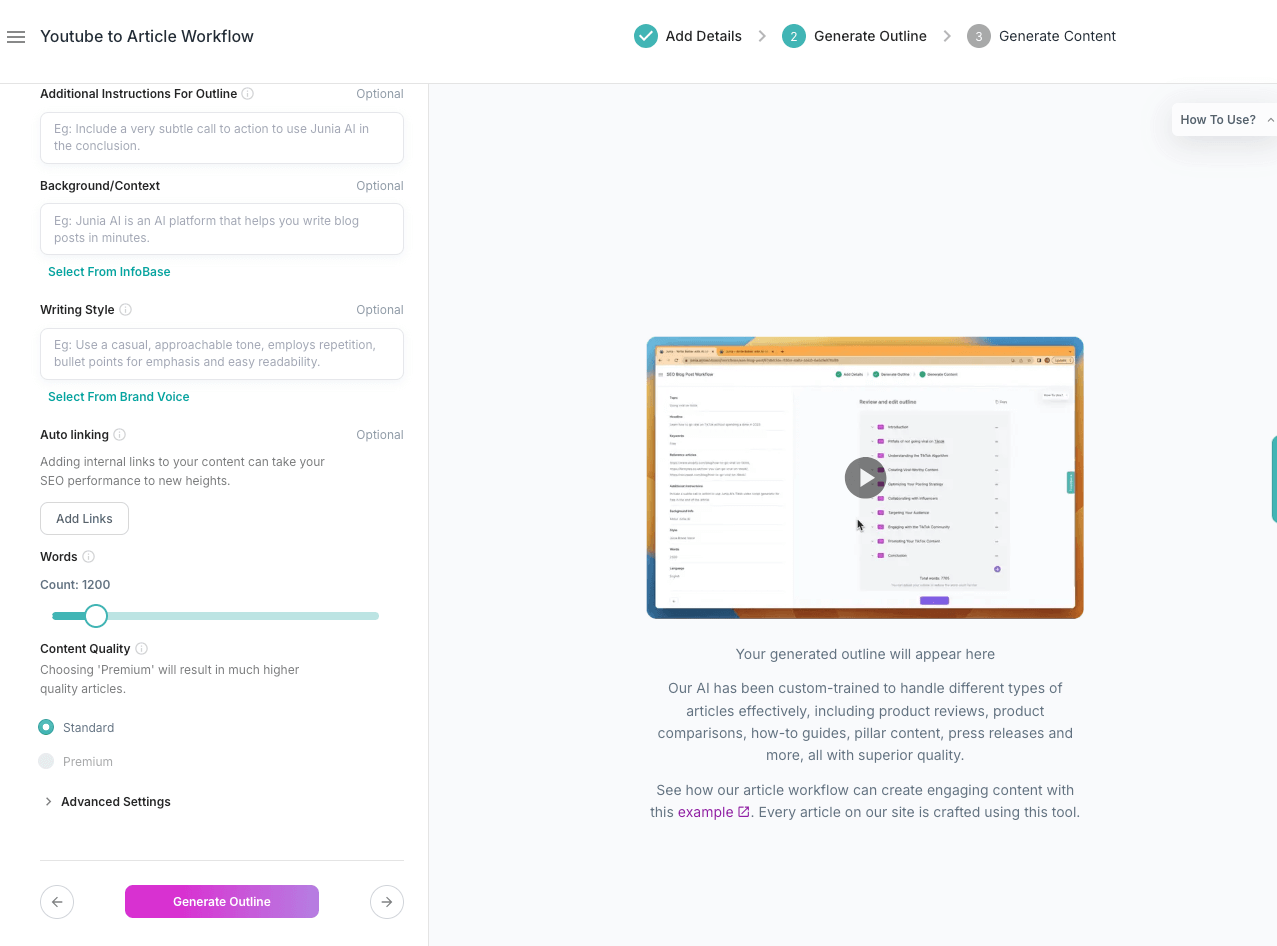
2. ‘Generate Outline‘ optional step, you can fill out details such as background/context, writing style, auto linking, word limit, and other advanced settings or just generate outline.
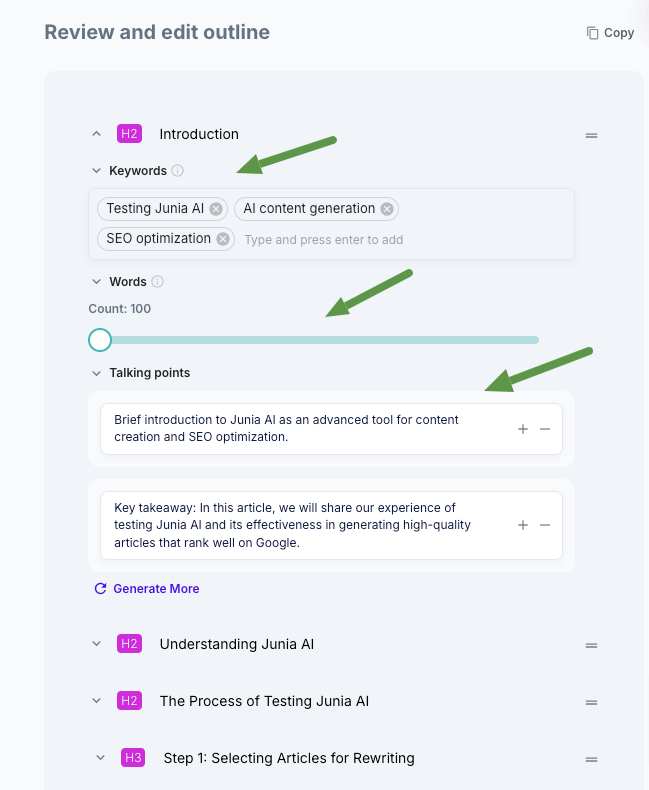
3. Use the ‘Generate Outline‘ feature to review and edit your outline. This lets you click on each heading to choose keywords, set a word limit, and check the main talking points.
4. AI Article Improver
Junia AI’s ‘Article Improver Beta’ lets you easily enhance your articles. Simply import your text, and the AI will add keywords and links to make it better. This helps improve your SEO and saves you time. It’s a simple way to boost your content and make it more engaging for readers.
5. Page Rank Booster
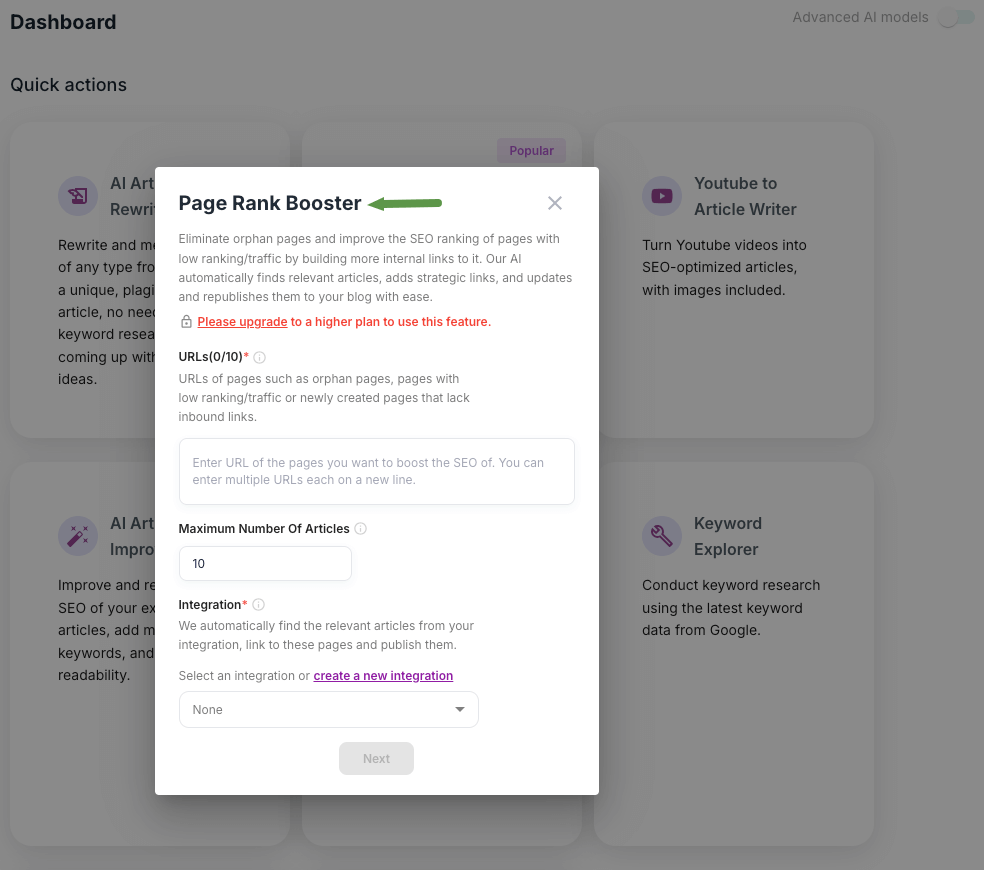
Junia AI’s ‘Page Rank Booster‘ helps make your web pages more visible in search results by improving their SEO. It fixes orphan pages, which are pages without links, by adding more links to them. The AI finds related articles, links them to your chosen pages, and updates them on your blog. Here’s how to use Junia AI: simply enter the URLs of the pages you want to enhance, and the tool will handle the rest. You can work on up to 10 articles at a time. The tool also connects with your existing systems to find suitable content for linking, making it easy to boost your page rankings.
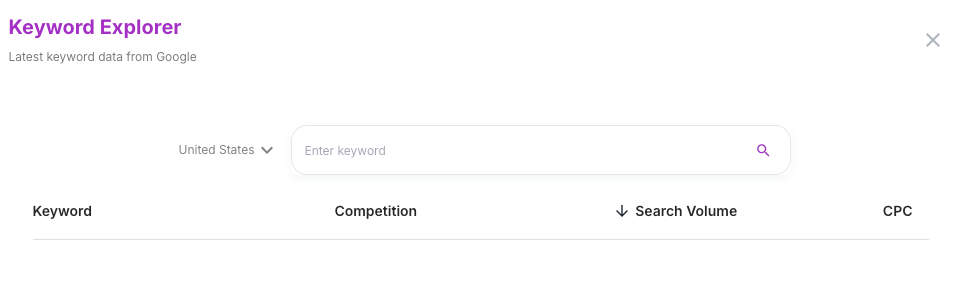
6. Keyword Explorer
Junia AI’s ‘Keyword Explorer‘ is a powerful tool designed to enhance your SEO strategy by helping you discover and analyze optimal keywords. It offers insights into keyword trends, search volume, and competition to help you identify high-performing keywords. This tool enables you to fine-tune your content for better visibility and search rankings, making it an essential asset for marketers and content creators seeking to optimize their SEO efforts efficiently.
7. Web Page Indexer
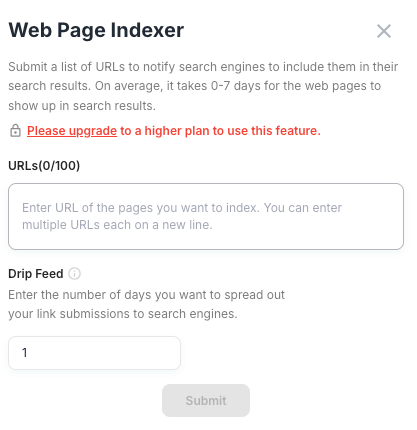
The ‘Web Page Indexer’ feature in Junia AI is designed to help get your web pages noticed by search engines. By submitting a list of your web page URLs, you can prompt search engines to include these pages in their search results. Typically, it takes anywhere from 0 to 7 days for these pages to start appearing in search results after submission.
To use this feature, you need to upgrade to a higher plan in Junia AI, as it is not available with the basic plan.
Additionally, there’s a ‘Drip Feed’ option that allows you to control the timing of your submissions. Instead of submitting all URLs at once, you can spread out the submissions over a certain number of days. This can help in managing how your pages are indexed over time, potentially leading to better search engine performance. For example, if you choose to spread the submissions over 5 days, the tool will gradually notify search engines about your URLs across that period. See screenshot below:
8. AI Editor
Junia’s ‘AI Editor‘ simplifies the writing process with advanced technology that offers helpful tips and ideas to enhance your content, making writing faster and easier. Whether you’re starting a new article or editing, this tool provides powerful features to aid you effortlessly.
You can access capabilities like: Junia AI humanizer expanding text, improving readability, fixing spelling and grammar, boosting SEO, automatic internal and external linking, image generation, and custom commands for prompts related to social media, sales, content/SEO, email marketing, and more.
Additionally, it allows you to use simple language, paraphrase, write conclusions, change tone, shorten text, summarize, translate content, and copy.
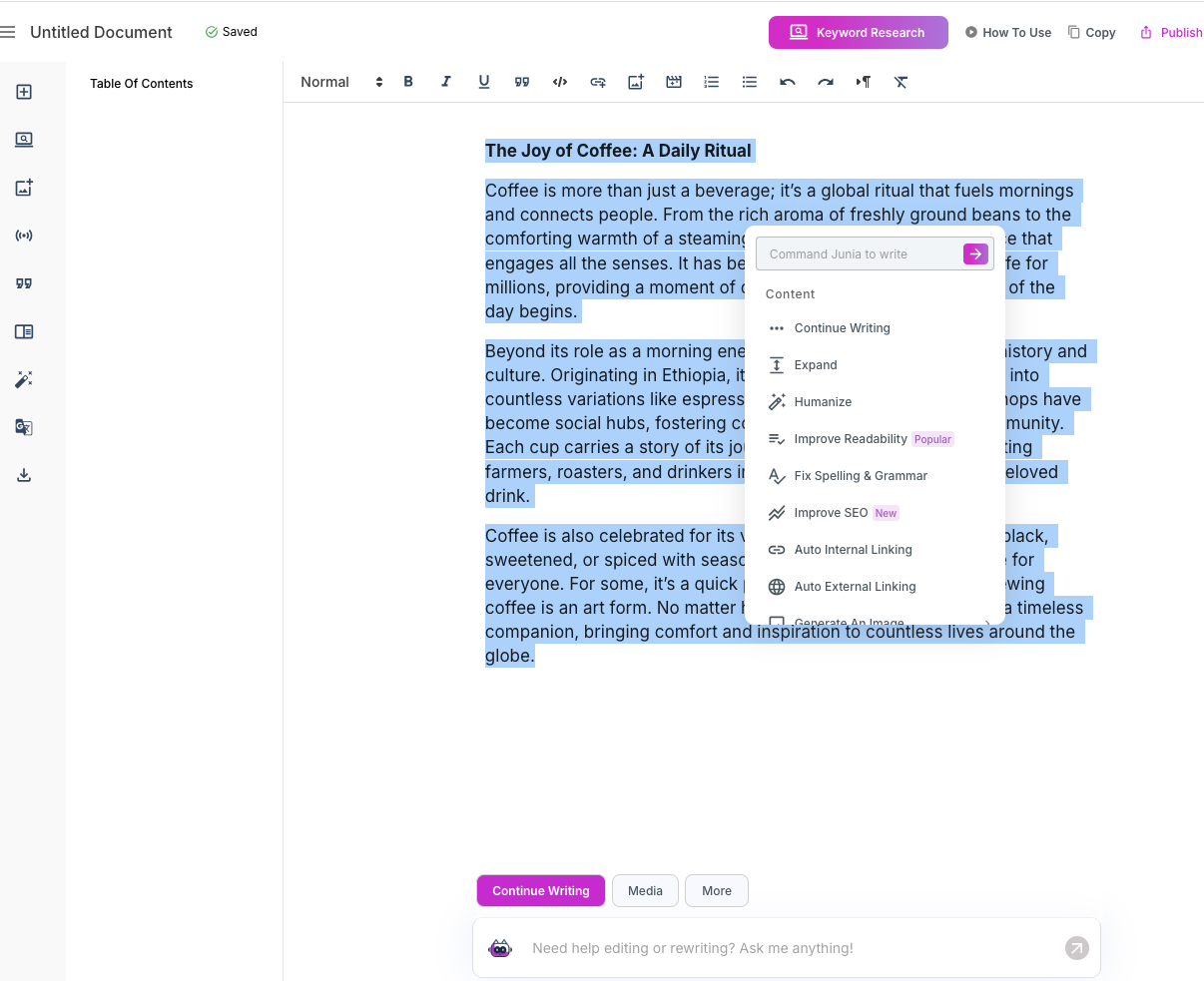
Note: The ‘custom command‘ feature in Junia AI is designed to help users by providing tailored prompts for various tasks. This feature guides you in generating specific types of content or performing particular activities more efficiently.
For example, if you’re working on social media content, sales materials, content for SEO, or email marketing campaigns, the custom command can give you relevant suggestions and ideas to streamline your work. Essentially, it acts as a personalized assistant, offering you precise starting points for creating effective and targeted content, making your tasks quicker and easier to accomplish.
9. AI Image Generator using DALL-E 3
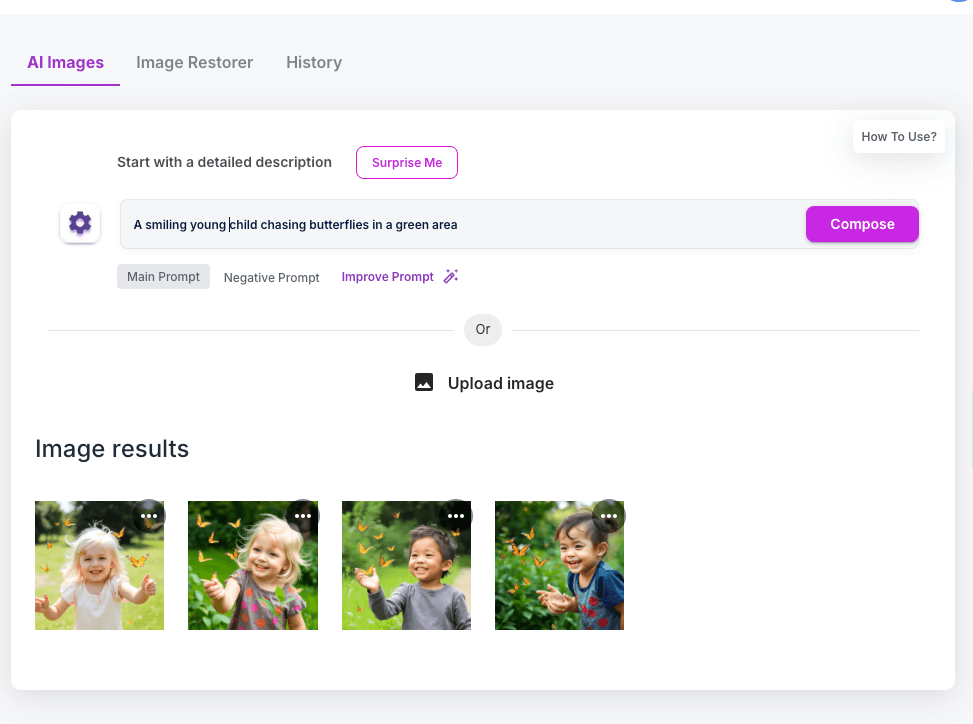
Junia AI’s ‘Image Generator‘ is a powerful tool that utilizes DALL-E 3 to create visuals based on your descriptions, while also allowing you to upload your own images for further customization.
The AI ‘Image Face Restorer‘ automatically enhances and refines facial features, transforming old or low-quality photos into polished images effortlessly.
With the ‘History‘ feature, you can easily track and manage all your generated visuals, ensuring consistency and quality for your blogs, social media, and marketing materials. This suite of features offers an intuitive and efficient way to produce high-quality visual content, enhancing both creativity and productivity.
How to Use:
Here’s how to use Junia AI’s image generator:
1. Select “AI Image Generator.”
2. Enter a description/prompts. (e.g., “A futuristic cityscape at sunset”). Try to write good image prompts to get the best results.
10. Junia AI Templates
Junia AI provides a wide variety of templates 50+ that make creating content easy and efficient, much like Jasper AI’s templates, now known as apps. However, Junia AI might offer even more features in their templates. These templates are simple to use and can be customized to fit your specific needs.
They work well with different content management systems, making them easy to integrate into your current setup. Moreover, they’re optimized for SEO, which helps your content rank better on search engines, and they support multiple languages, reaching a wider audience.
Whether you’re working on personal or commercial projects, Junia AI’s templates cater to various industries, giving you access to a range of tools to streamline your content creation process.
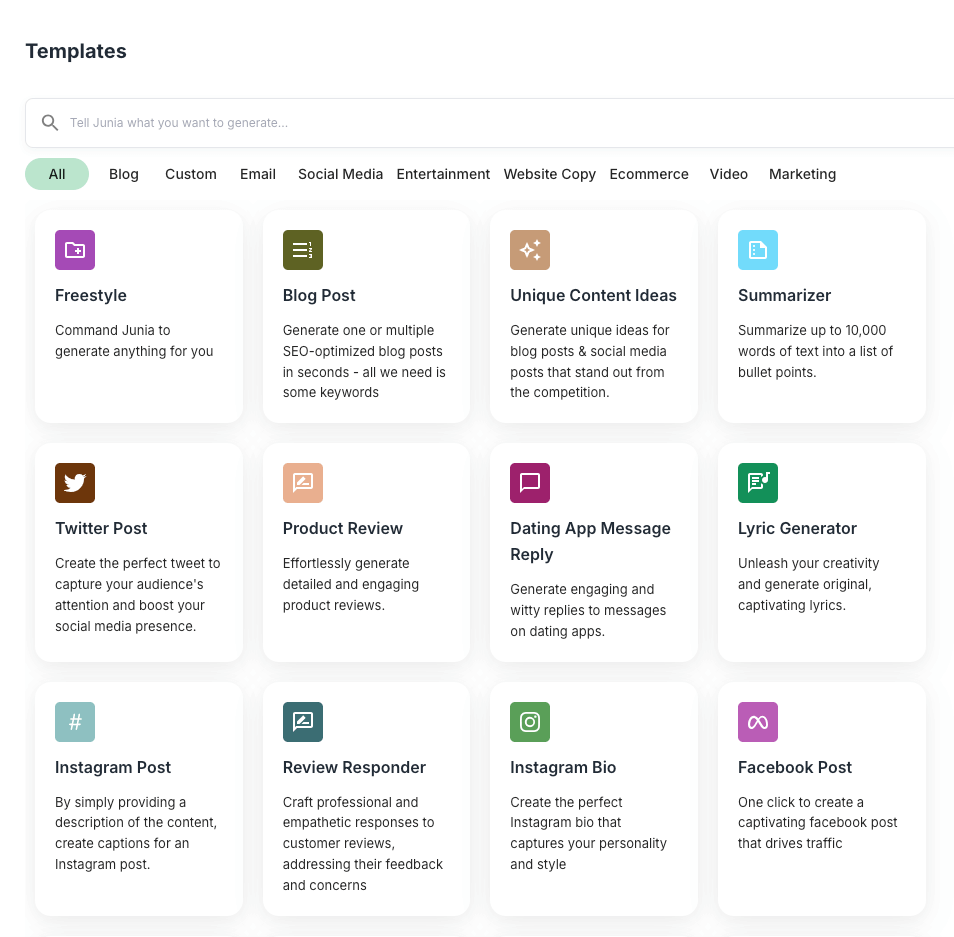
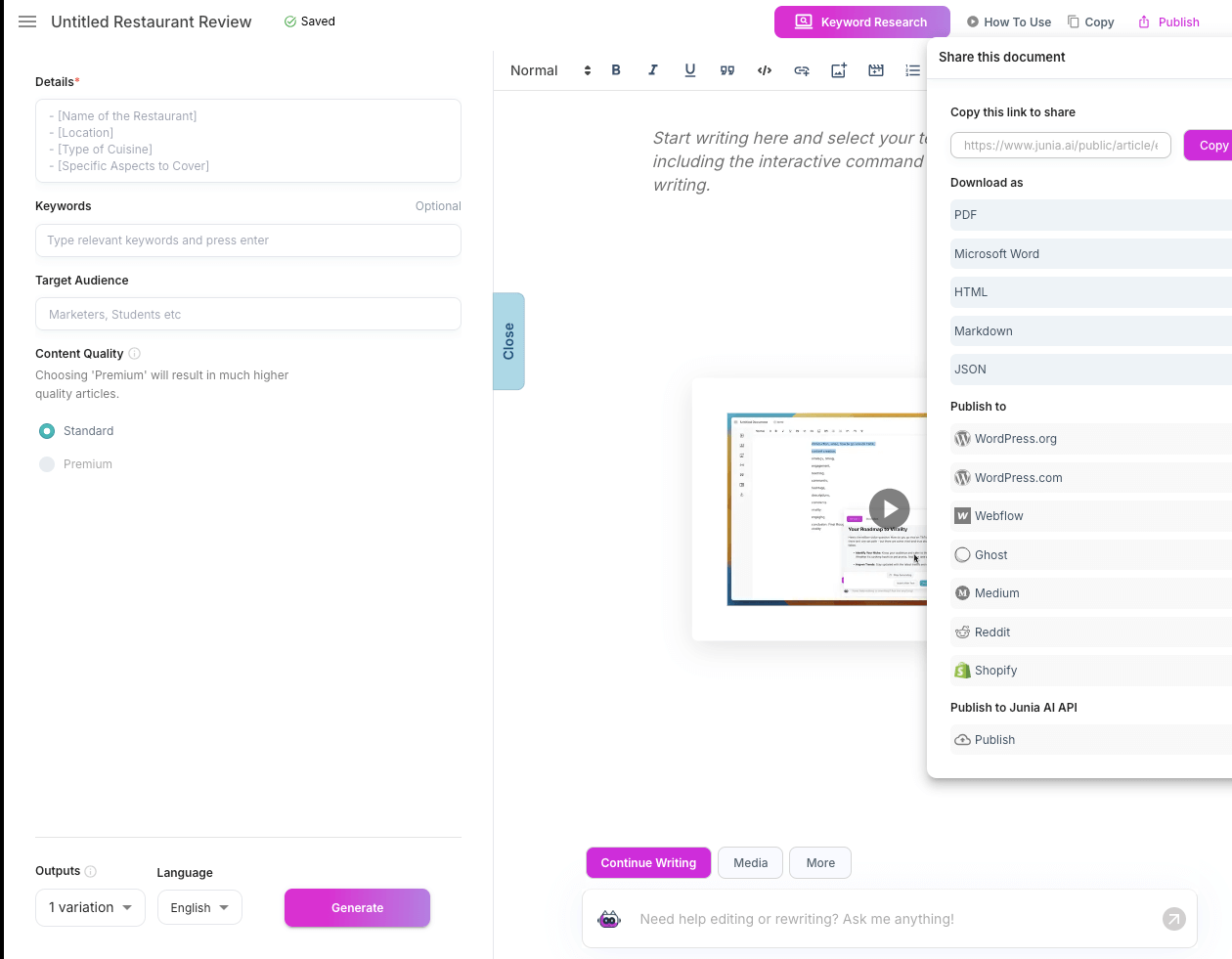
Junia AI offers a variety of templates, similar to Jasper AI’s apps, but with potentially more features. These templates guide you through filling out fields to generate content, like a restaurant review. Here’s how to use Junia AI templates: simply select a template, input the necessary details, and let the AI generate your content.
Once your content is ready, you can publish it directly to platforms like WordPress, Shopify, and Reddit, or through the Junia AI API. This API allows you to programmatically fetch and publish articles, making it easy to integrate with your applications.
You can also add SEO keywords, use different languages, and take advantage of Junia AI’s editing features to refine your content. Below is an example of a template:
3. How to Use Junia AI Best Practices
- Combine Features: Pair tools like the Blog Writer and Image Generator to create visually engaging content.
- Edit AI Outputs: Always review and refine AI-generated content to align with your goals and audience tone.
- Leverage SEO Tools: Use the Keyword Explorer and Page Rank Booster to optimize your content for search engines.
- Integrate Brand Voice: Regularly update your brand preferences to maintain consistency across all campaigns.
- Measure Performance: Use analytics to track how Junia AI-optimized content impacts your audience and SEO rankings.
4. Conclusion
Junia AI is a powerful content creation tool that simplifies writing and optimizes it for SEO, making it a valuable asset for bloggers, marketers, and businesses. By following this guide, you can unlock the full potential of Junia AI and elevate your content strategy.
